SwiftUI Patterns
Photo Galleries with LazyVGrid
May 25, 2026
5 min read
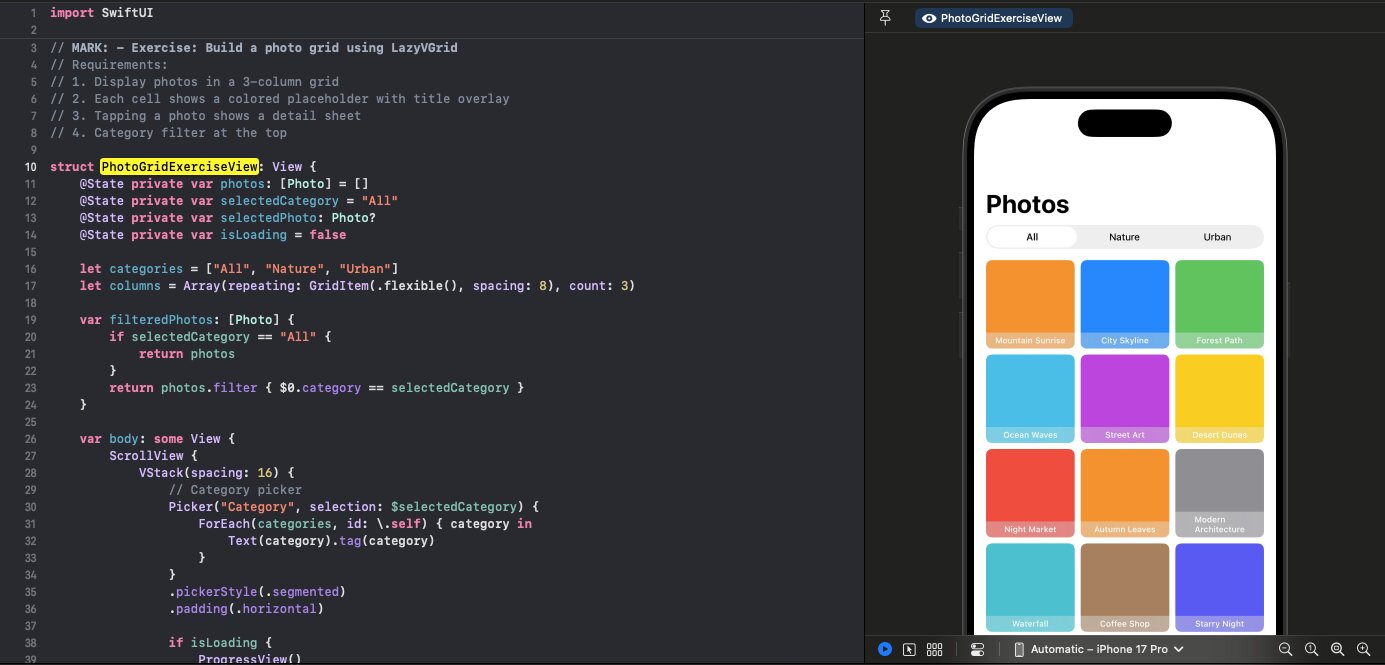
LazyVGrid is perfect for photo galleries. Here's how to build one with filtering and tap interactions.
Follow along with the code: iOS-Practice on GitHub
Basic Grid Setup
struct PhotoGridExerciseView: View {
    @State private var photos: [Photo] = []
    @State private var selectedCategory = "All"
    @State private var selectedPhoto: Photo?
    @State private var isLoading = false

    let categories = ["All", "Nature", "Urban"]
    let columns = Array(repeating: GridItem(.flexible(), spacing: 8), count: 3)

    var filteredPhotos: [Photo] {
        if selectedCategory == "All" {
            return photos
        }
        return photos.filter { $0.category == selectedCategory }
    }

    var body: some View {
        ScrollView {
            VStack(spacing: 16) {
                Picker("Category", selection: $selectedCategory) {
                    ForEach(categories, id: \.self) { category in
                        Text(category).tag(category)
                    }
                }
                .pickerStyle(.segmented)
                .padding(.horizontal)

                if isLoading {
                    ProgressView()
                        .frame(maxWidth: .infinity, minHeight: 200)
                } else if filteredPhotos.isEmpty {
                    ContentUnavailableView("No Photos", systemImage: "photo.on.rectangle.angled")
                        .frame(minHeight: 200)
                } else {
                    LazyVGrid(columns: columns, spacing: 8) {
                        ForEach(filteredPhotos) { photo in
                            PhotoGridCell(photo: photo)
                                .onTapGesture {
                                    selectedPhoto = photo
                                }
                        }
                    }
                    .padding(.horizontal)
                }
            }
        }
        .navigationTitle("Photos")
        .task {
            await loadPhotos()
        }
        .sheet(item: $selectedPhoto) { photo in
            PhotoDetailSheet(photo: photo)
        }
    }
}
Defining Columns
let columns = Array(repeating: GridItem(.flexible(), spacing: 8), count: 3)
This creates 3 flexible columns with 8pt spacing between them.
Column Types:
.flexible()- Grows to fill space.fixed(100)- Exactly 100pt wide.adaptive(minimum: 80)- As many as fit, minimum 80pt
Grid Cell Design
struct PhotoGridCell: View {
    let photo: Photo

    var body: some View {
        ZStack(alignment: .bottom) {
            RoundedRectangle(cornerRadius: 8)
                .fill(Color(named: photo.thumbnailColor))
                .aspectRatio(1, contentMode: .fit)

            Text(photo.title)
                .font(.caption2)
                .fontWeight(.medium)
                .foregroundColor(.white)
                .padding(4)
                .frame(maxWidth: .infinity)
                .background(.ultraThinMaterial)
        }
        .clipShape(RoundedRectangle(cornerRadius: 8))
    }
}
Key points:
aspectRatio(1, contentMode: .fit)makes square cellsZStackoverlays title on image.ultraThinMaterialcreates a blur effect
Tap Handling
ForEach(filteredPhotos) { photo in
    PhotoGridCell(photo: photo)
        .onTapGesture {
            selectedPhoto = photo
        }
}
Setting selectedPhoto triggers the sheet.
Sheet Presentation
.sheet(item: $selectedPhoto) { photo in
    PhotoDetailSheet(photo: photo)
}
Using .sheet(item:) automatically:
- Shows sheet when item is non-nil
- Passes the item to the sheet
- Sets item to nil on dismiss
Performance
LazyVGrid only renders visible cells. For thousands of photos, use it instead of regular VStack in a ScrollView.
Interview Tip
Discuss the difference between LazyVGrid and regular layouts—lazy loading is critical for performance with large collections.